Introduction
For most high-quality displays connected to a Mac, macOS automatically detects and sets appropriate resolution, and your adjustment is normally unnecessary.
However, there are situations where you may notice the displayed content looks odd, for example, UI elements like menu text or buttons may appear too small or sometimes blurry. In such cases, you might need to go into the System Settings app and choose a different resolution under Displays.
Concepts
Before you change the display resolution, let’s sort out some concepts.
Physical Resolution and DPI / PPI
A display has physical resolution, i.e., how many native pixels in width and height directions. For example, a 5K display has 5120×2880 pixels.
A display also has physical size. For example, a 27-inch display has the diagonal length of about 27 inches.
The pixels are arranged in square arrays, so a display has density of pixels same in both directions, expressed in pixels per inch (ppi) or dots per inch (dpi). For example, a 5K 27-inch display is 218 dpi/ppi. The higher the dpi, the finer a pixel is, and the sharper the display can show details.
Points
From perspective of app developers, the display, or a screen, is the area where UI elements can be drawn. When designing a macOS app, UI elements are specified in terms of points. For example, a button may be specified as 50×50 pts. In apps like Keynote, you specify text size in points too, e.g. 36 pts. These points represent logical size of UI elements.
Logical Resolution
In the past, a standard Macintosh display has 72 dpi. This means that 36-pt text rendered to this display without any scaling would take 0.5-inch height in physical screen.
As you see, today’s displays have way higher dpi, e.g. 218 dpi.
If the same UI designed for older display is rendered to newer high DPI display the same way, the UI elements would be extremely small (about 1/3 physical size on display in the example above). The UI is basically impossible to read or interact.
To prevent this issue, modern macOS does not map UI points directly to physical pixels in display. The apps still express UI using points. macOS provides a logical display of certain size in terms of points. Below the hood, macOS maps the logical display to the physical display.
Scaling
Mapping the logical points to onscreen physical pixels is called scaling.
macOS always knows the exact physical resolution of the display theoretically. macOS renders UI elements and vector graphics such that the graphic primitives like lines are using full physical resolution, therefore as sharp as possible.
Scaling is automatic, and app developers normally don’t need to intervene. It’s however possible to learn the scaling factor. Note that, if your app uses scaling factor, the scaling factor can be dynamic, for example, when a window is moved from one display to another display, their dpi might be different, so is the scaling factor.
For bitmaps such as icons, unlike vector graphics, automatic scaling may not work very well, and Apple guideline suggests developers provide multiple bitmaps of different pixels sizes / dpis, so macOS can choose the most appropriate one to render for different physical displays.
When scaling is applied, the logical points per inch (lppi) differs from physical pixels per inch (pppi). The ratio of them is the scaling factor.
Choose Display Resolution
With the concepts above in mind, let’s talk about choosing the display resolution.
As macOS always knows the physical pixel resolution of display theoretically, in the System Setting app | Displays, you are really choosing logical resolution (in points), not physical resolution.
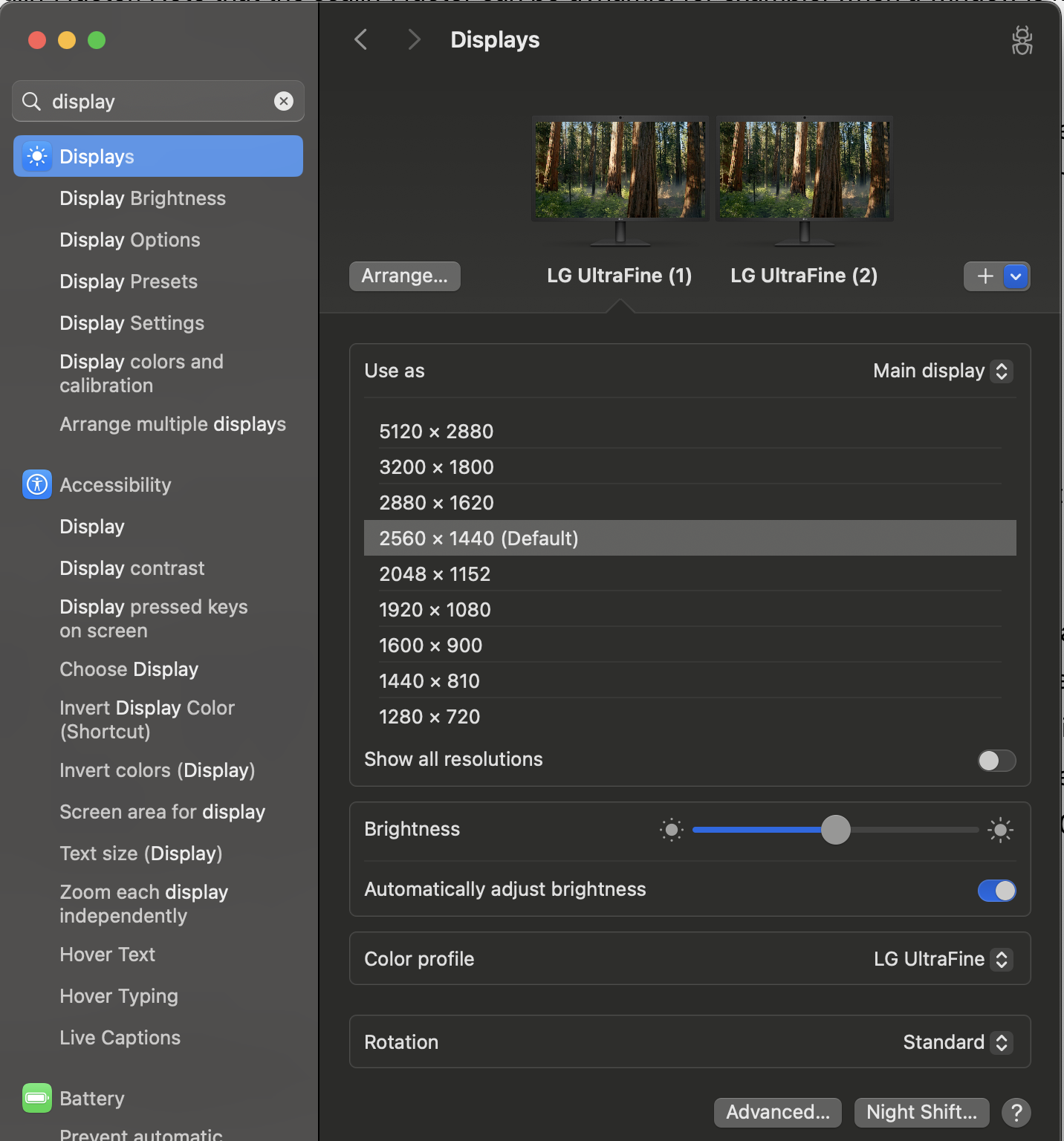
The goal is to balance several factors:
- Logical size of real estate of the screen
- Physical size of UI elements in screen
- Sharpness of rendered details
At a given display and viewing distance, choosing a higher logical resolution means a larger logical screen. Therefore the same physical screen can house more UI elements and contents represented in logical points. This means you can have more windows or dialogs in the screen. But each UI element would appear physically smaller, may become harder to see or choose. You could potentially see sharper details of the rendering.
Conversely, if you use a low logical resolution, the logical screen is smaller. The screen then cannot show a lot of UI elements, and each UI element can appear bigger. This can make seeing or interacting with UI easier, but you may have to scroll more often to see other UI elements. If you use too low a logical resolution, you may see coarse details of the screen rendering.
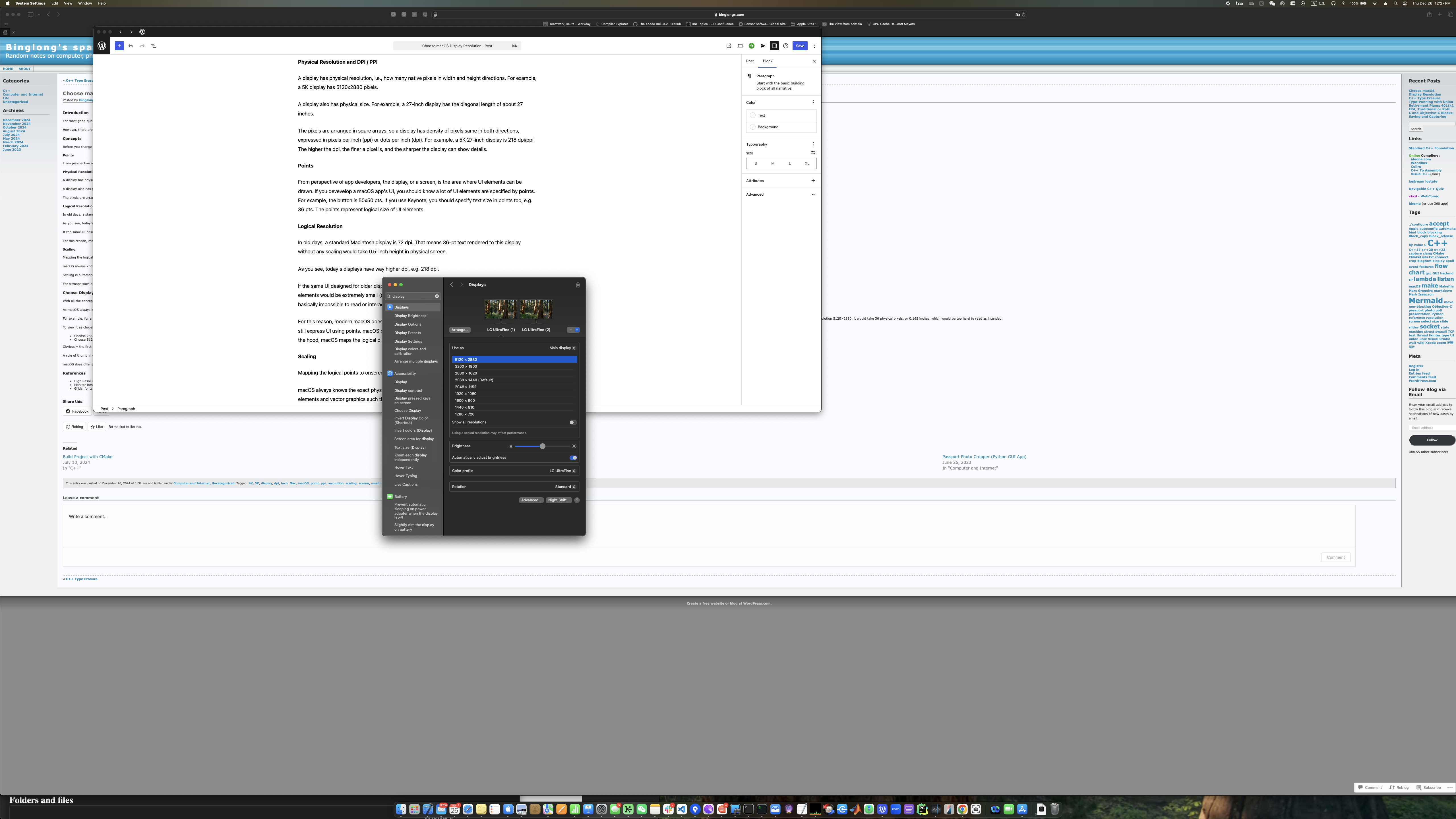
For the 5K 27-inch display, this is the result of using 5120×2880 logical resolution (same as physical resolution):
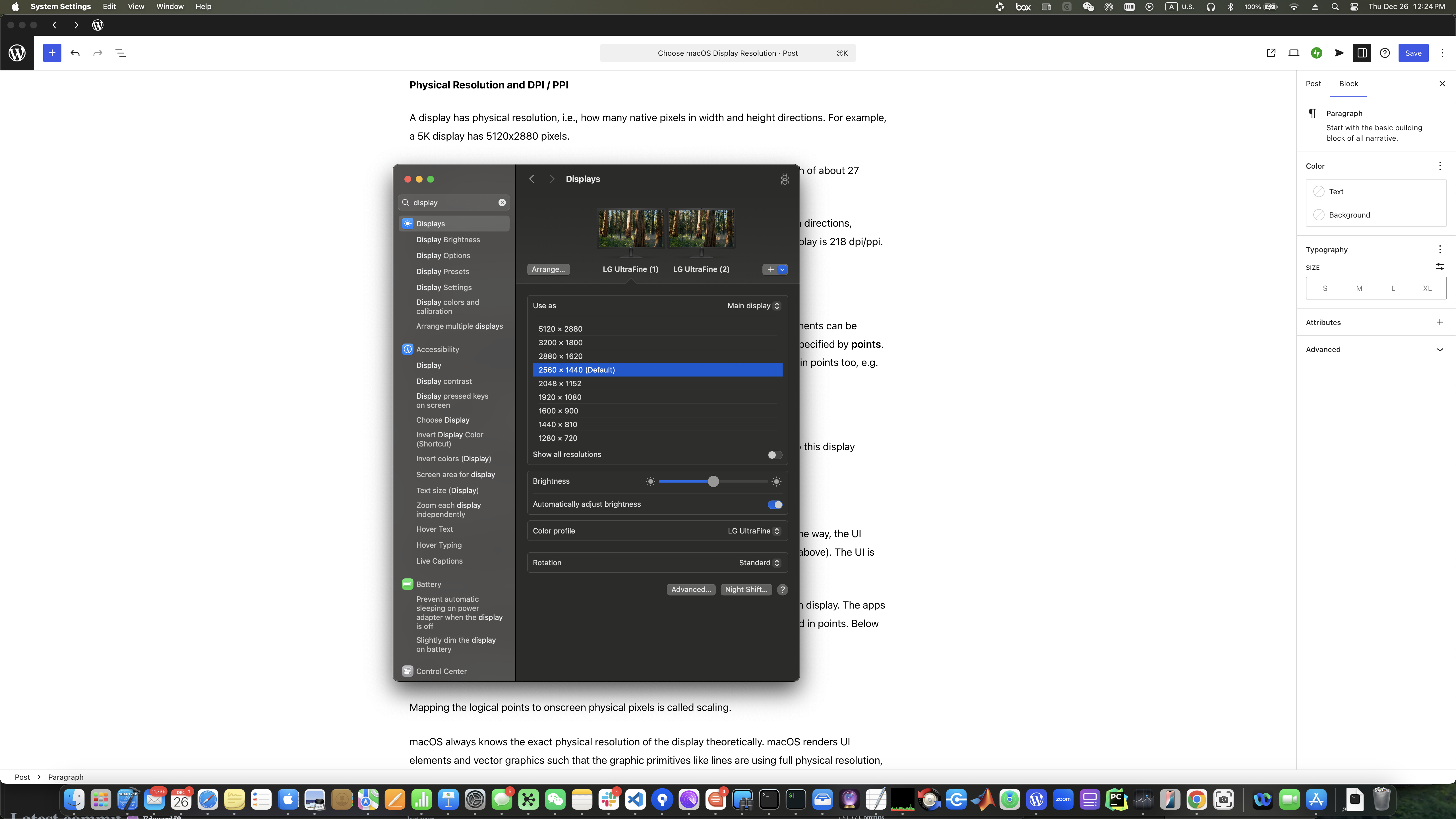
And this is the result of using 2560×1440 logical resolution (half of physical resolution):
And this is using even lower 1280×720 logical resolution (1/4 of physical resolution):

For my viewing distance of about 75cm, 5120×2880 logical resolution results in too little text size that is hard to read, and 1280×720 logical resolution ends up with too little content showing up and wasting my screen estate. 2560×1440 logical resolution is a good balance, and the contents are also sharp.
A simple calculation for a 218 pppi 5120×2880 display:
- A) 5120×2880 logical resolution: 218 lppi
- B) 2560×1440 logical resolution: 109 lppi
- C) 1280×720 logical resolution: 55 lppi
B)’s 109 lppi would be closer to standard 72 lppi (from old day UI design guideline) than A)’s 218 lpp. Most apps designed using points would render with reasonable size for UI elements. For example, 36-pt text would use 0.33 inches at 109 pt/inch. This is smaller than 0.5 inches when the app was designed for 72-dpi display. But if you use logical resolution as the same to physical resolution 5120×2880, it would take 0.165 inches, which would be too hard to read as intended.
Obviously, if the display’s physical size is larger, or if your viewing distance is different, you may need to use a different logical resolution even for the same 5K physical resolution.
Conclusion
It is not necessary to choose the logical resolution that matches the physical resolution to get sharp rendering.
A general rule of thumb is to pick among 1x, or half, or rarely 1/4 of physical resolution, which results in close to or slightly larger than 72 lppi for normal viewing. This is because macOS scaling works best for integral 2x or 4x ratios.
macOS also offers other scaling options (like 2880×1620 logical resolution for 5120×2880 display). They are not ideal scaling but still provide usable experience. Feel free to experiment and choose the one that looks and feels best to you.
References
- High Resolution Explained: Features and Benefits: https://developer.apple.com/library/archive/documentation/GraphicsAnimation/Conceptual/HighResolutionOSX/Explained/Explained.html
- Monitor Resolution Guide for macOS: https://havn.blog/2024/11/14/display-resolution-guide.html
- Grids, fonts, columns and responsive design: https://practicalseries.com/1001-webdevelopment/03-02-grid.html
 Binglong's space